
How to Use Excel to Automatically Create Reports – Part 4: Most Recent Results

Previous parts:
Part 1: vLookup
Part 2: Extract Multiple Records
Part 3: Create a Dynamic Report Builder
Part 4: Most Recent Results
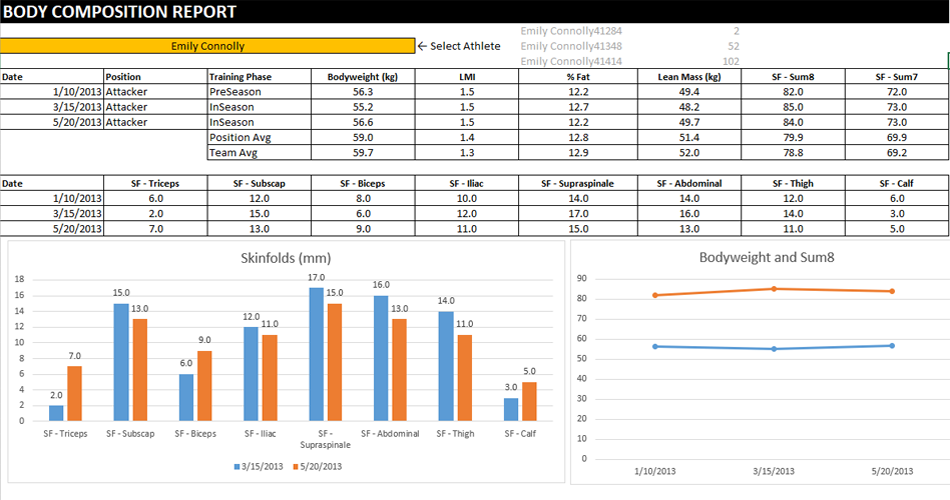
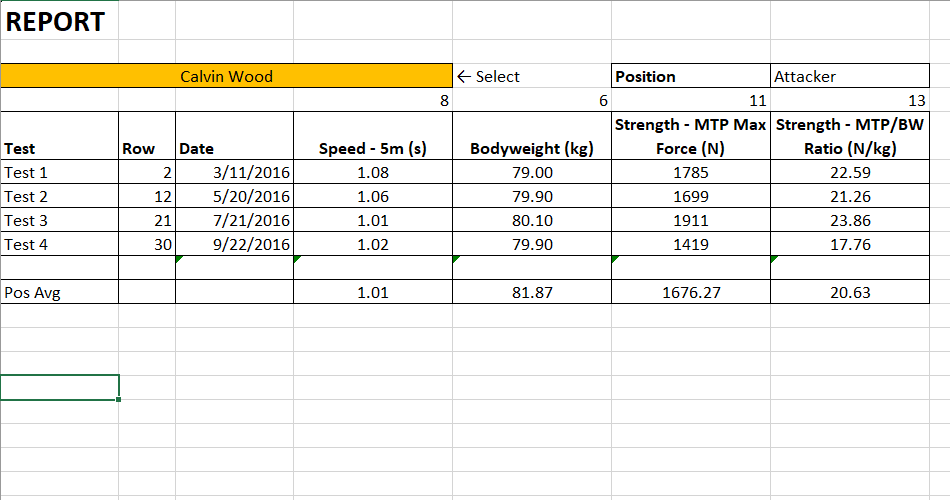
This is the part 4 of this video series. We have been looking at ways that you could extract information from a set of fitness testing data to produce reports simply by selecting a name from a drop-down box. In this video I will show you how to extract only the most recent records for a selected athlete using either the LARGE or the AGGREGATE function to provide the row numbers and INDEX to extract the data.
To learn more, please watch the video below.





Responses